9 min read
 Updated 7 November 2026
 Navigraph editorial
Navigraph uses a single account across all of its products. The same login opens Navigraph Charts on your tablet, authorises Navigraph Hub to install navigation data, connects Simlink to your simulator and signs you in to SimBrief. When everything uses the same account, the ecosystem feels seamless. When one piece is signed in with a different account — or not signed in at all — things stop working in confusing ways.
This guide explains how Navigraph login works in each application, how device authorisation codes work for in-sim panels and aircraft, and how to solve the sign-in problems simmers run into most often.
navigraph.app does not offer a login. Navigraph accounts are created and managed only on Navigraph’s official website. Never enter your Navigraph password on any other domain.
Creating your Navigraph account
If you do not have an account yet:
- Go to the official Navigraph website, navigraph.com, by typing the address yourself.
- Choose the option to create an account and enter your details.
- Confirm your email address using the message Navigraph sends you.
- Sign in once on the website to make sure everything works.
The account itself is free. Subscriptions — Navigation Data or Navigraph Unlimited — are added to the account separately. If you already use SimBrief, check whether you have linked it to a Navigraph account before creating a new one; using two accounts is one of the most common sources of confusion.
One account, many applications
Here is where your Navigraph login is used and why each one matters.
| Application | What the login does |
|---|---|
| Navigraph Charts (desktop, mobile, browser) | Unlocks demo or subscription features, synchronises your experience |
| Charts In-Game Panel (MSFS) | Shows charts inside the simulator |
| Navigraph Hub | Checks your subscription and installs MSFS navigation data and panels |
| FMS Data Manager | Checks your subscription and installs data for X-Plane, Prepar3D and FSX add-ons |
| Navigraph Simlink | Sends your aircraft position to Charts on any device signed in to the same account |
| SimBrief | Identifies you for flight planning and lets Charts import your flight plans |
| Supported add-on aircraft and EFBs | Load charts or flight plans inside the aircraft |
The golden rule: every one of these should be signed in with the same Navigraph account.
Signing in to Navigraph Charts
Desktop apps
Open Navigraph Charts on Windows or macOS and choose to sign in. The app typically opens Navigraph’s official sign-in page in your browser. After you sign in there, the app receives confirmation and completes the login. If the browser does not return you to the app automatically, switch back to the app manually.
Mobile apps
On iPad, iPhone or Android, the sign-in flow happens inside the app or through the system browser. Once signed in, the device usually stays signed in until you sign out or the session expires.
Browser edition
At charts.navigraph.com, sign in on Navigraph’s own sign-in page. If you use the browser edition on a shared computer, sign out when you are done. Our Navigraph online charts guide covers browser-specific tips.
Device codes: authorising panels, aircraft and EFBs
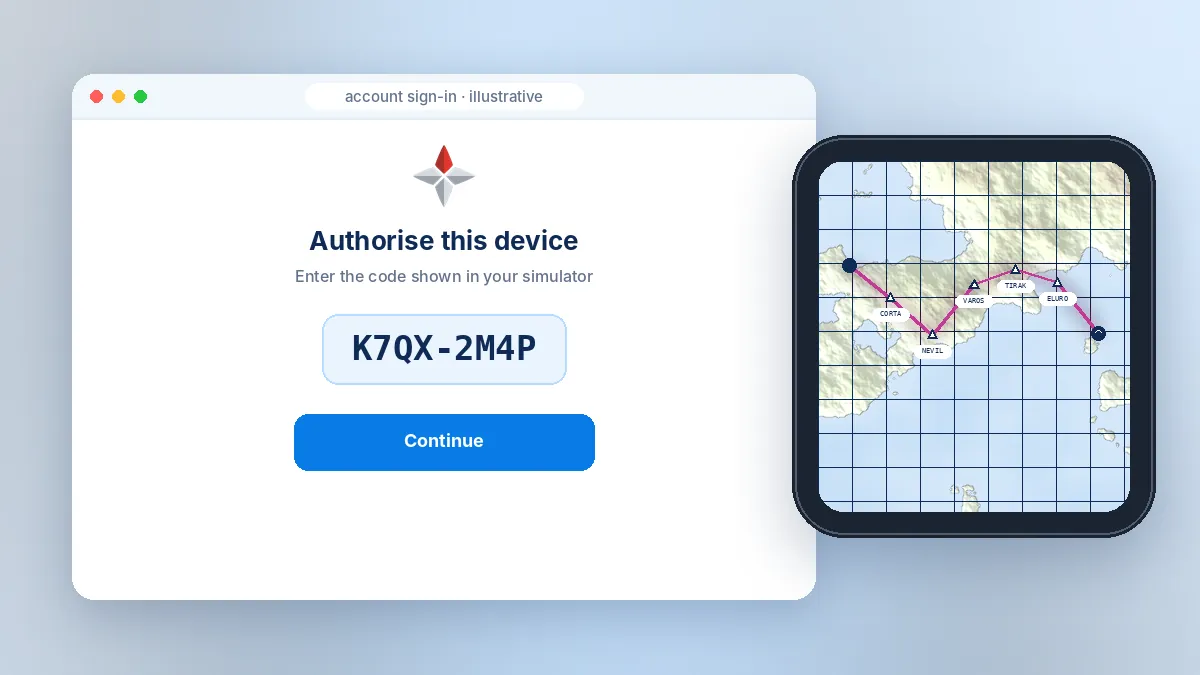
Some places where you need Navigraph cannot show a full browser sign-in page — an in-sim panel, an electronic flight bag inside an add-on aircraft, or a small companion app. For these, Navigraph uses a device authorisation flow.
How it works
- The panel or aircraft displays a short code and a web address, or a QR code.
- On your phone or computer, open the address, which belongs to Navigraph.
- Sign in to your Navigraph account if you are not already signed in.
- Enter or confirm the code shown in the simulator.
- The panel or aircraft receives authorisation and connects to your account.
This approach keeps your password out of the simulator entirely. The code is temporary and tied to that specific authorisation request.
Tips for device codes
- Check the web address before entering anything. It should belong to Navigraph.
- Act quickly. Codes expire after a short time; if it expires, request a new one in the simulator.
- Use the same account you use everywhere else.
- Never share a code with anyone or paste it into a third-party website.
Signing in to the data tools
Navigraph Hub (Microsoft Flight Simulator)
Navigraph Hub installs navigation data, the Charts In-Game Panel and avionics plugins for MSFS on PC. Sign in when you first open Hub. If your account has no active subscription that includes navigation data, Hub can still open, but data packages will not be available to install.
FMS Data Manager (X-Plane, Prepar3D, FSX)
FMS Data Manager handles data for other simulators and their add-ons. Sign in with your Navigraph account; the tool then lists the add-ons it has detected and the data you are entitled to download.
Signing in to Simlink
Simlink must be signed in with the same account as the Charts client where you expect to see the moving map. If Simlink is signed in as one account and your tablet as another, your aircraft will never appear. This is the most frequent cause of "moving map not working" reports.
SimBrief and your Navigraph login
SimBrief uses Navigraph accounts. When you sign in to SimBrief, you are using your Navigraph credentials. Flight plans you generate are stored in your SimBrief account and can be imported into Navigraph Charts — provided Charts is signed in to the same Navigraph account and your subscription includes that integration. Read more in our SimBrief Navigraph guide.
Fixing common Navigraph login problems
"My subscription is not recognised"
- Confirm you are signed in with the account that actually holds the subscription. Many simmers have an older account created years ago.
- Sign out of the application completely, then sign back in so it refreshes your entitlements.
- Check the subscription status on your account page on navigraph.com.
"The app opens the browser but never finishes signing in"
- After signing in on the web page, switch back to the app manually.
- Make sure your browser is not blocking pop-ups or redirects for Navigraph’s domain.
- Try a different default browser temporarily.
- Restart the application and try again.
"My moving map does not show my aircraft"
- Simlink and Charts must use the same account.
- Simlink must be running before or while the simulator loads.
- Load fully into the cockpit before checking.
"The in-sim panel keeps asking for a code"
- The previous code may have expired. Request a new one and complete it promptly.
- Sign in on the authorisation page with the correct account.
- Restart the simulator after updating panels through Hub, then authorise again.
"I forgot my password"
Use the password reset option on Navigraph’s official sign-in page. Reset emails come from Navigraph; if you do not receive one, check your spam folder and confirm you are using the email address registered on the account.
"I have two accounts"
If you discover you have two Navigraph accounts — for example one with SimBrief history and one with a subscription — contact Navigraph support through the official forum or website. Do not try to work around it by sharing credentials between devices.
Keeping your Navigraph account secure
Your Navigraph login protects a paid subscription and your flight plan history. A few habits keep it safe:
- Use a unique password that you do not use on other websites.
- Use a password manager so you can recognise the real Navigraph domain — password managers will not autofill on look-alike domains.
- Ignore unsolicited messages offering free subscriptions or asking you to "verify" your account through a link.
- Never share your account. Subscriptions are personal and non-transferable, and shared accounts can be suspended.
- Sign out on shared devices, especially in the browser edition.
- Download applications only from official sources — see our download page for where each tool comes from.
A quick sign-in checklist
Before an important flight, take thirty seconds to confirm:
- Charts is signed in and shows your subscription features.
- Hub or FMS Data Manager shows the current data installed.
- Simlink is running and signed in to the same account.
- SimBrief shows your latest flight plan.
- Any in-sim panel or aircraft EFB is authorised.
If all five are green, your flight will run smoothly from planning to parking.
Recognising phishing and fake login pages
Because Navigraph accounts protect paid subscriptions, they can attract phishing attempts. These usually arrive as messages or posts promising a free subscription, a giveaway or an urgent account problem, and link to a page that looks like a sign-in screen. The page collects your email and password and passes them to someone else.
Protect yourself with a few simple checks:
- Read the address bar. The domain should be Navigraph’s own. Look carefully for extra words, swapped letters or unusual endings.
- Do not sign in from links in unexpected messages. Type the address or use a saved bookmark instead.
- Be sceptical of "free subscription" offers that require your password. Legitimate promotions do not need your credentials on another website.
- Let your password manager help. If it does not offer to fill in your saved password, you may not be on the real site.
- Change your password immediately if you think you entered it on a suspicious page, and review your account for unfamiliar activity.
Managing your account settings
Once signed in on navigraph.com, your account area is where you manage the things that affect every application. Typical items include your email address, password, subscription status and renewal settings, and any connected services. Checking this page is also the quickest way to confirm which account actually holds your subscription — useful when an application insists you have no access.
It is worth reviewing your account occasionally, for example at the start of each AIRAC cycle when you update data. Make sure the email address is current so password resets and important notices reach you, and confirm that the renewal settings match what you intend.
Signing out and switching accounts
If you need to change which account an application uses — for example after merging old accounts or after a family member used your computer — sign out of that application first, then sign in again with the correct account. Do this in every place listed earlier: Charts on each device, Hub or FMS Data Manager, Simlink and SimBrief. Leaving one application on the old account is enough to break the moving map or flight plan import.
Frequently asked questions
Is there a Navigraph login on navigraph.app?
No. navigraph.app is an editorial reference. All Navigraph accounts are created and managed on navigraph.com.
Can I use the same Navigraph login on several devices?
Yes, you can sign in on your own devices — desktop, tablet and browser — to use Navigraph across your setup. Accounts are personal and must not be shared with other people.
Do I need a separate SimBrief account?
SimBrief uses Navigraph accounts for sign-in, so one Navigraph account covers both.
Why does my aircraft ask for a code instead of a password?
Device codes let in-sim panels and aircraft connect to your account without you typing your password into the simulator. It is safer and works on screens where a full sign-in page is impractical.
Does logging in require an internet connection?
Yes. Sign-in and subscription checks require a connection, even if some content can later be viewed offline in supported apps.
Key takeaways
- One Navigraph account connects Charts, Navigraph Hub, FMS Data Manager, Simlink, SimBrief and in-sim panels.
- Most problems that look technical are account problems: two accounts, or one application signed in to the wrong one.
- In-sim panels and aircraft use short-lived device codes, so your password never has to be typed into the simulator.
- Sign in only on Navigraph’s official domain, use a unique password and ignore offers that ask for your credentials elsewhere.
- When switching accounts, sign out and back in on every application, not just the one that shows an error.
A two-minute check of these points before a flight prevents the majority of sign-in issues that interrupt simulator sessions, and keeps your subscription and flight plan history safe.
Final thoughts
Most Navigraph problems that look technical are really account problems: two accounts, one application signed in to the wrong one, or an expired device code. Use one account everywhere, sign in only on Navigraph’s official domain, and authorise in-sim panels with device codes. With that foundation in place, Charts, data, Simlink and SimBrief work together exactly as intended.