9 min read
 Updated 4 November 2026
 Navigraph editorial
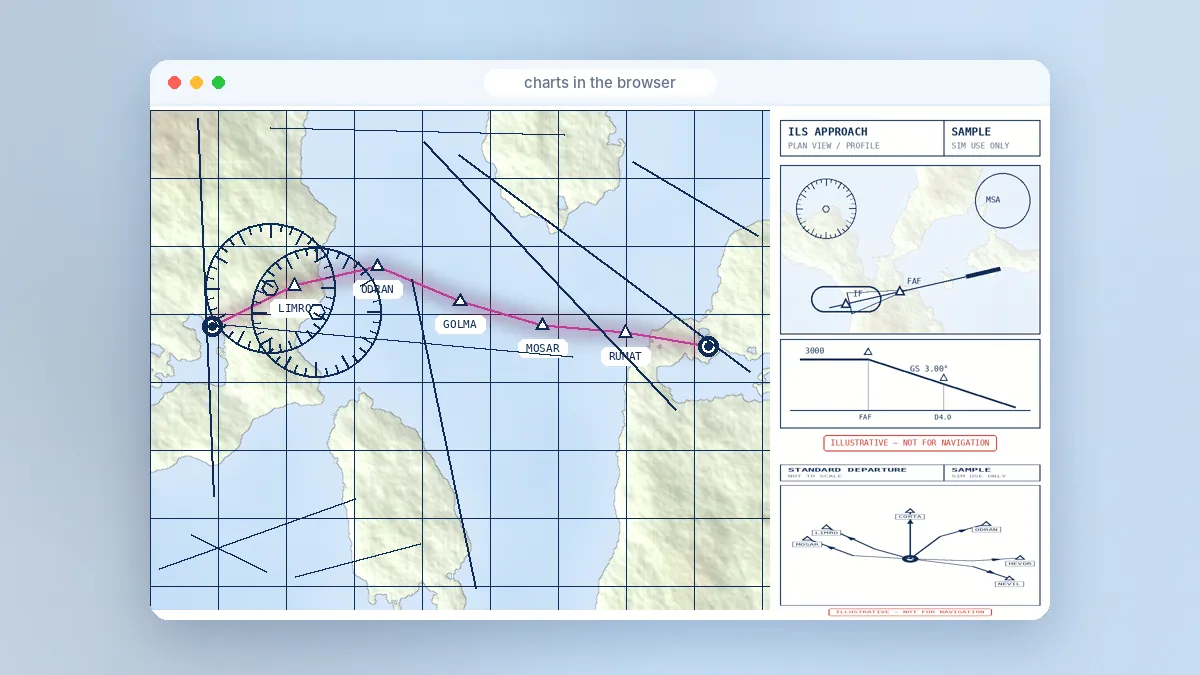
"Charts Cloud" is a name you will see often in flight simulation forums, tutorials and older Navigraph announcements. It refers to the browser-based edition of Navigraph Charts, available at charts.navigraph.com. Navigraph introduced it so pilots could access the same charts and features as the installed apps from any web browser, and it remains a central part of how many simmers use Navigraph today.
But "cloud" also describes something broader: the way Navigraph connects your devices through your account. Your simulator, your data tools, your charts on a tablet and your flight plans in SimBrief all meet through Navigraph’s servers. This guide explains both meanings — the browser edition itself and the cloud-connected workflow — and shows how to build a reliable multi-device setup.
What Navigraph Charts Cloud is
Navigraph Charts Cloud is Navigraph Charts running in a web browser. Navigraph has described it as offering the same feature set as the other Charts apps. In practice that means:
- the same chart library (with a subscription);
- the same interactive map with airways, navaids and airspace;
- the same route planning and SimBrief import;
- the same overlays for weather and online-network traffic;
- the same moving map support through Simlink.
The difference is delivery: you open a web page instead of installing an application. Older Navigraph announcements described Charts as available on Windows, Mac, iPad and Android, "and through any web browser using Navigraph Charts Cloud". That browser edition is what you use today at charts.navigraph.com. For a hands-on walkthrough of using it, see our Navigraph online charts guide.
Why "cloud" matters
Beyond the browser, the cloud is what connects the Navigraph ecosystem. Three connections are worth understanding.
1. Your account as the hub
Every Navigraph application signs in with your Navigraph account. Your subscription status, entitlements and connections to SimBrief are tied to that account, not to a specific computer. Sign in on any supported device and Navigraph knows what you can access.
2. Simlink to Charts
The moving map is a cloud feature. Simlink, running on the simulator PC, sends your aircraft’s position to Navigraph. Any Charts client signed in to the same account — the desktop app, a tablet, a phone or Charts Cloud in a browser — can then show your aircraft live. The device showing the map does not need to be on the same computer as the simulator.
3. SimBrief to Charts
SimBrief stores your flight plans online. Navigraph Charts reads your latest SimBrief plan through your account, so the route you planned in a browser at your desk appears on your tablet in the cockpit without any file transfers.
These three connections are what make a multi-device workflow possible.
Building a multi-device workflow
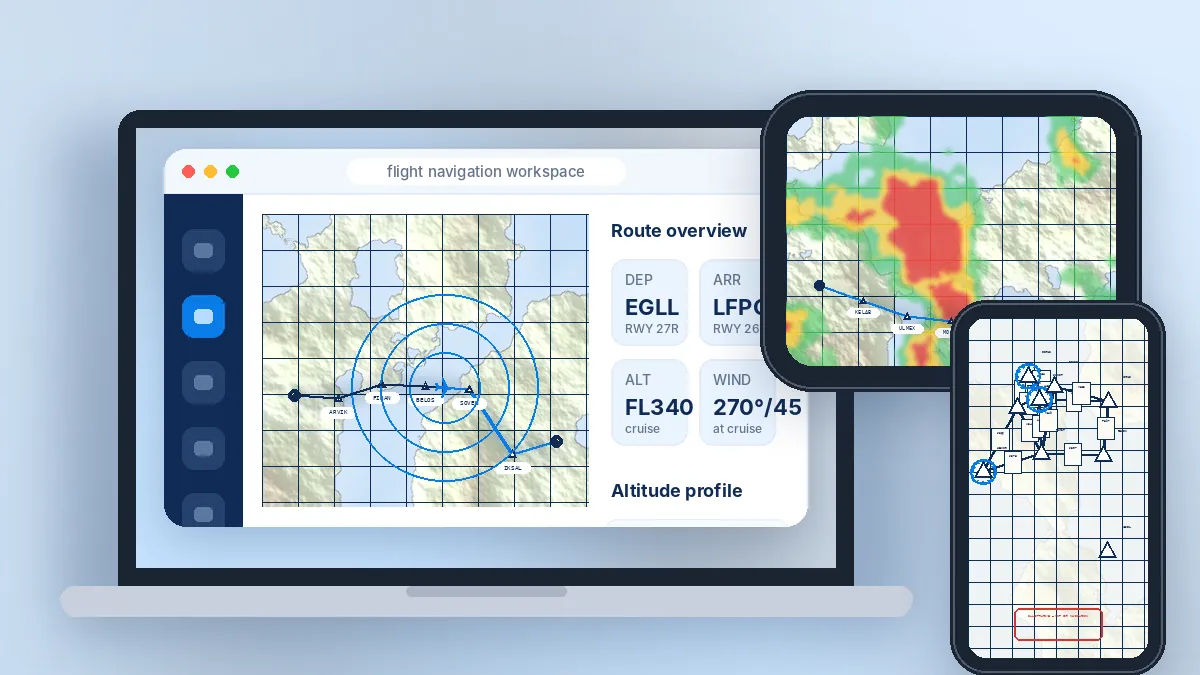
The real strength of Charts Cloud and the connected ecosystem appears when you use more than one screen. Here is a practical structure.
Planning device: desktop or laptop
Use a larger screen for planning. Open SimBrief to generate your operational flight plan, then open Charts Cloud or the desktop app to review the route on the map, read the procedures and pin the charts you will need.
Flying device: tablet or second monitor
During the flight, use a tablet or second monitor as your electronic flight bag. Open Navigraph Charts — the native app or Charts Cloud in the browser — signed in to the same account. Your SimBrief route is available to import, and with Simlink running, your aircraft appears on the map.
Quick reference: phone
A phone signed in to the same account makes a handy backup: check the airport diagram during taxi or look up an alternate quickly without changing what is on your main chart device.
In-sim: the MSFS panel
If you fly Microsoft Flight Simulator, the Charts In-Game Panel provides the same charts inside the simulator, which is useful in VR or when you want to stay in the cockpit view.
Setting it up step by step
- Install your data tool. Navigraph Hub for MSFS, or FMS Data Manager for X-Plane and Prepar3D, so the aircraft database matches your charts.
- Install Simlink on the simulator PC and sign in.
- Plan in SimBrief with the same Navigraph account.
- Open Charts Cloud at charts.navigraph.com on your planning device, sign in, import the SimBrief flight and pin your charts.
- Open Navigraph Charts on your flying device, signed in to the same account. Import or select the same flight.
- Start the simulator and load into the cockpit. Your aircraft appears on the map on every signed-in Charts device.
What synchronises — and what to check
Because the ecosystem is account-based, a lot of information follows you between devices. However, the exact behaviour of individual items — such as pinned charts, annotations or settings — depends on the current version of each app. Rather than assuming everything synchronises instantly, adopt a simple habit: after importing a flight on a second device, glance at the pinned list and pin anything that is missing. It takes seconds and avoids surprises during a busy phase of flight.
| Item | Typically follows your account | Good habit |
|---|---|---|
| Subscription and entitlements | Yes | Sign in with the correct account |
| SimBrief flight plan | Yes, via import | Re-import after generating a new OFP |
| Aircraft position (Simlink) | Yes, live | Same account on Simlink and Charts |
| Pinned charts | Depends on version | Check the list on each device |
| Display settings | Usually per device | Set theme and units on each device |
Charts Cloud for different simulators
Microsoft Flight Simulator (PC)
Charts Cloud works alongside the In-Game Panel. Many pilots plan in Charts Cloud on a laptop and fly with the in-game panel or a tablet.
X-Plane
Charts Cloud and Simlink make an excellent X-Plane combination, especially on a second monitor or laptop, since the browser edition needs no installation on the simulator PC.
Prepar3D
The same Simlink-based moving map applies. Charts Cloud on a second device keeps the simulator PC free to focus on rendering.
Consoles
Console pilots cannot install Hub packages or run Simlink on the console, but they can use Charts Cloud on a phone, tablet or computer for charts and planning, and SimBrief for flight plans.
Reliability tips for a cloud-based setup
- Stable internet matters. A brief connection drop can pause the moving map. Wired or strong Wi-Fi connections help.
- One account everywhere. Most "nothing synchronises" problems are two different accounts.
- Keep Simlink updated, particularly after simulator updates.
- Refresh after big changes. If you generate a new SimBrief plan, re-import it.
- Use the native app on tablets if the browser feels less smooth on touch devices; both are signed in to the same account.
- Close heavy browser tabs on the device running Charts Cloud.
Security in a cloud workflow
A connected workflow means your account is signed in on several devices. Protect it:
- use a strong, unique password;
- sign in only on navigraph.com and charts.navigraph.com;
- sign out of Charts Cloud on shared or public computers;
- authorise in-sim panels and aircraft with device codes on Navigraph’s official page;
- never share your account — subscriptions are personal and non-transferable.
Our Navigraph login guide covers sign-in and device codes in detail.
Charts Cloud versus installed apps
| Situation | Charts Cloud | Installed app |
|---|---|---|
| Cannot install software | Ideal | Not possible |
| Planning on a work laptop | Ideal | Often not possible |
| Touch-first tablet use | Good | Often smoother |
| Long flights without reliable internet | Less suitable | Better where offline features exist |
| Always the latest version | Automatic | Requires updates |
The good news is that you do not have to choose one. Because everything runs through the same account, you can use Charts Cloud where it fits and installed apps where they fit, all in the same session.
A multi-device evening flight, start to finish
Imagine an evening long-haul flight using the full cloud-connected setup. At your desk, you generate an operational flight plan in SimBrief on your laptop, then open Charts Cloud in the same browser. You import the flight, look at the route on the 3D globe, and pin the departure and arrival charts.
You walk to your simulator. Navigraph Hub has already installed the current navigation data, and Simlink starts with Windows. You load the aircraft at the gate and import the SimBrief plan into the FMC. Your tablet, mounted beside the yoke, shows Navigraph Charts signed in to the same account; the flight is there, and your aircraft symbol sits at the correct stand on the airport diagram.
During the flight you leave the laptop open with Charts Cloud showing the whole route and weather overlays, while the tablet stays on the chart you need for the current phase. Hours later, approaching the destination, you brief the arrival and approach on the tablet. After landing, the airport diagram and moving map guide you to the stand. Three devices took part in the flight, yet you never transferred a file or typed the route twice — the account did the work.
When the cloud is not available
Every connected workflow benefits from a fallback. If your internet connection drops during a flight:
- the simulator and the aircraft continue to fly normally, because navigation data is installed locally;
- the moving map may pause until Simlink can reach Navigraph again;
- charts you already opened may remain visible depending on the device and edition;
- SimBrief plans already loaded into the aircraft are unaffected.
A simple habit helps: before a long flight, open and pin all the charts you expect to need while the connection is good. If you rely heavily on a tablet, the native app may be a better choice than the browser for flights where your connection is uncertain.
Organising a home cockpit around Charts Cloud
Home cockpit builders often use small computers or spare laptops to drive secondary screens. Charts Cloud is ideal here: any device that runs a modern browser can become a dedicated chart display without installing software. A small screen mounted where a real aircraft would hold its EFB, running Charts Cloud with Simlink-driven moving maps, adds a realistic touch to the cockpit with very little setup effort.
Frequently asked questions
Is Navigraph Charts Cloud a separate subscription?
No. Charts Cloud is the browser edition of Navigraph Charts. Access depends on your Navigraph plan, the same as the installed apps.
Is Charts Cloud the same as charts.navigraph.com?
Yes. Charts Cloud is the community and historical name for the browser edition available at charts.navigraph.com.
Can Charts Cloud show a moving map?
Yes, when Simlink is running on the simulator PC and signed in to the same account.
Does Charts Cloud work on a Chromebook or Linux?
Any modern browser capable of running the application should work. Performance depends on the device.
Do I need Charts Cloud if I already have the desktop app?
Not necessarily, but it is convenient on secondary devices and computers where you cannot install the app.
Troubleshooting a cloud-connected setup
When something does not appear where you expect it, work through the chain one link at a time:
- Account. Is every device and application signed in with the same Navigraph account? This solves most problems on its own.
- Simlink. Is it running on the simulator PC, connected to the simulator, and showing that it is sending position data?
- Simulator. Have you loaded fully into the cockpit, rather than sitting in a menu or loading screen?
- Charts. Is the map centred on your aircraft, or is follow mode switched off?
- SimBrief. Did you generate the latest OFP, and have you re-imported it after changes?
- Connection. Is the internet connection stable on both the simulator PC and the chart device?
Working through the chain in this order is faster than reinstalling software, and it teaches you how the pieces depend on each other.
Key takeaways
- Charts Cloud is the browser edition of Navigraph Charts at charts.navigraph.com, with the same feature set as the installed apps.
- The wider "cloud" is your Navigraph account, which links Simlink, SimBrief and every Charts device.
- A good multi-device workflow uses a large screen for planning, a tablet or second monitor for flying and a phone as a backup.
- Open and pin your charts while the connection is good, and keep one account across every app.
Final thoughts
Navigraph Charts Cloud is more than a browser version of a chart viewer. It is a window into an account-based ecosystem where your simulator, your flight plans and your charts meet. Use a larger screen to plan, a tablet or second monitor to fly, and Simlink to tie your aircraft to every map. Once you work this way, charts stop being something you look up and become part of how the whole flight runs.