9 min read
 Updated 3 November 2026
 Navigraph editorial
SimBrief is the flight planning service most flight simulator pilots use to produce realistic operational flight plans. Navigraph is the provider of charts and navigation data. Since Navigraph acquired SimBrief, the two have become closely connected: they share an account system, they rely on the same navigation data, and a SimBrief plan can flow straight into Navigraph Charts and into many add-on aircraft.
This guide explains how the SimBrief Navigraph connection works, what you need for each part, and how to build a dispatch-style workflow that takes you from planning to parking without retyping a single waypoint.
What SimBrief does
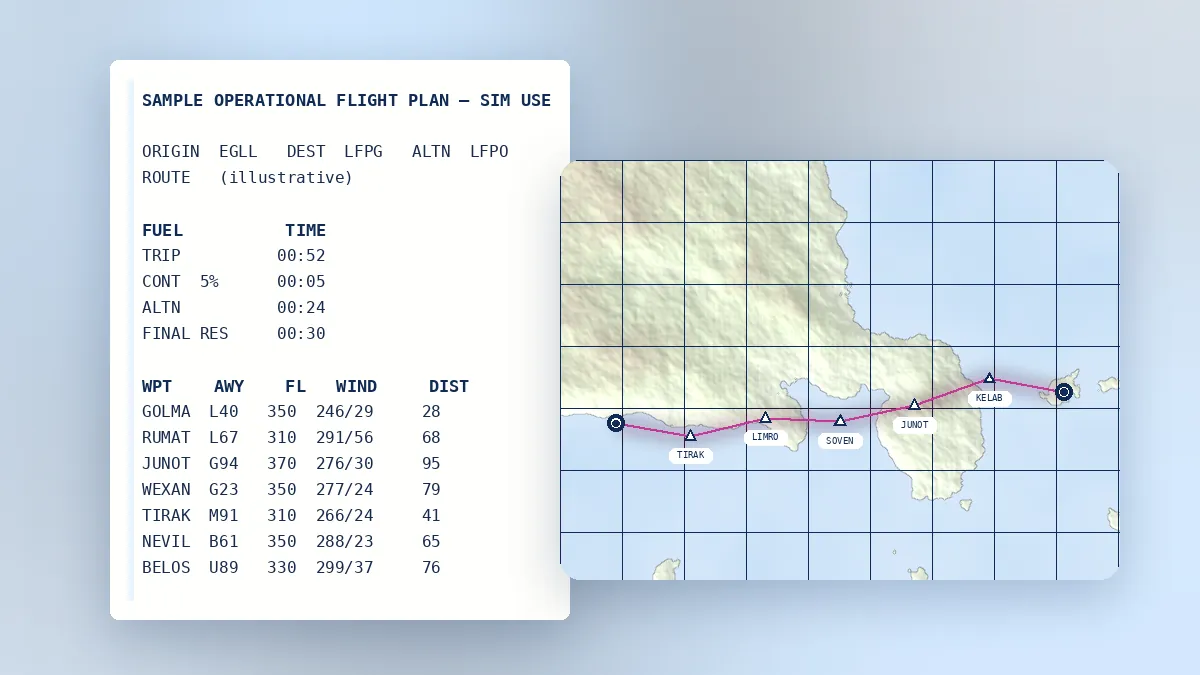
SimBrief generates an operational flight plan (OFP) — the document airline crews use to brief and fly a flight. A SimBrief OFP typically includes:
- the route between departure and destination, with waypoints and airways;
- fuel planning: trip fuel, contingency, alternate, final reserve and extra fuel;
- weights: payload, zero fuel weight, takeoff and landing weight estimates;
- alternate airports and the fuel needed to reach them;
- winds and temperatures along the route at planned flight levels;
- a navigation log with distances, times and fuel at each waypoint;
- airport weather and other briefing information.
SimBrief works with aircraft profiles, so the numbers reflect the type you are flying. It is used in a browser, and many add-on aircraft and EFBs can load SimBrief plans directly.
How SimBrief and Navigraph connect
One account
SimBrief signs in with a Navigraph account. If you already have Navigraph, you use the same login for SimBrief. If you are new, creating a free Navigraph account gives you access to SimBrief for planning. Our Navigraph login guide covers account setup and sign-in.
Navigation data in SimBrief
SimBrief builds routes from navigation data — the same kind of data that goes into your aircraft’s FMC. A Navigraph subscription that includes navigation data is associated with the most current AIRAC data in SimBrief, which matters because routes generated with one cycle and flown with another can contain waypoints or procedures that no longer match. Check SimBrief’s settings and Navigraph’s official information for how AIRAC cycles apply to your account.
Charts integration
With Navigraph Unlimited, SimBrief and Navigraph Charts work together more deeply: you can import your SimBrief flight into Charts so the route appears on the map, and Charts-based map features have been added to SimBrief itself for Unlimited subscribers. Airport and procedure charts themselves are viewed in Navigraph Charts.
| Feature | Free Navigraph account | Navigation Data | Navigraph Unlimited |
|---|---|---|---|
| Sign in to SimBrief and generate OFPs | Yes | Yes | Yes |
| Current AIRAC data for aircraft | No | Yes | Yes |
| Import SimBrief plans into Navigraph Charts | No | No | Yes |
| Charts-based map features in SimBrief | No | No | Yes |
General structure only — confirm current plan details on the official websites.
Setting up the SimBrief Navigraph connection
- Create or sign in to your Navigraph account at navigraph.com.
- Open SimBrief and sign in with the same Navigraph account.
- Set your preferences in SimBrief: units, OFP layout, default airline code if you fly a virtual airline, and aircraft profiles.
- Sign in to Navigraph Charts on your preferred device with the same account.
- Update your aircraft navigation data with Navigraph Hub (MSFS) or FMS Data Manager (X-Plane, Prepar3D) so it matches the cycle used for planning.
- Configure your aircraft or EFB to import SimBrief plans if it supports it — usually by entering your SimBrief username or Pilot ID in the aircraft settings.
Generating a good SimBrief OFP
Choose the aircraft profile
Select the aircraft type that matches what you are flying. Many add-on developers and the community provide profiles that reflect specific variants and engines, giving more realistic fuel and weight figures.
Enter departure, destination and alternate
Use ICAO codes. If you have a preferred alternate, enter it; otherwise SimBrief can suggest one.
Route
Let SimBrief generate a route, or enter one yourself. If you fly on VATSIM or IVAO, check whether events or regions recommend specific routings.
Payload and fuel policy
Set passenger and cargo numbers and any fuel preferences such as extra fuel or contingency policy.
Generate and read the OFP
Once generated, read it. The OFP is not just a number for the fuel truck; it tells you the expected flight time, cruise levels, step climbs, winds and fuel at each waypoint. Reading it before departure is the core of a realistic briefing.
Importing the plan into Navigraph Charts
With Navigraph Unlimited, Charts can import your latest SimBrief flight:
- Open Navigraph Charts signed in with the same account.
- Use the flight-plan import option to load your SimBrief flight.
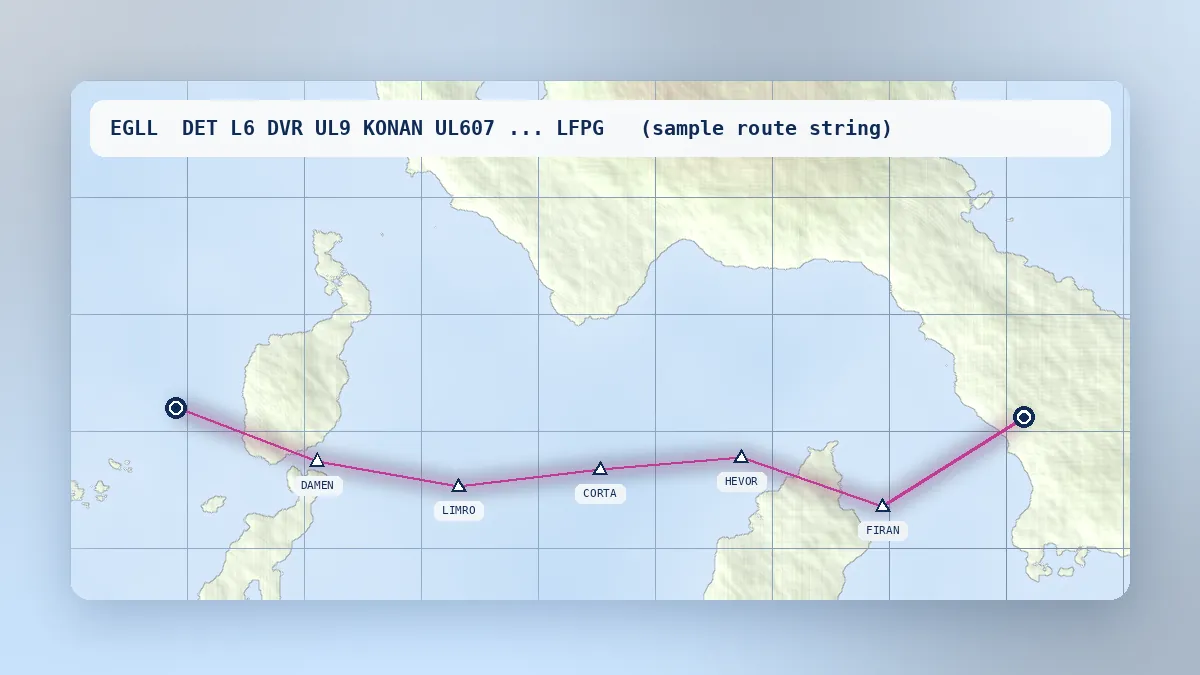
- The route appears on the map with all waypoints.
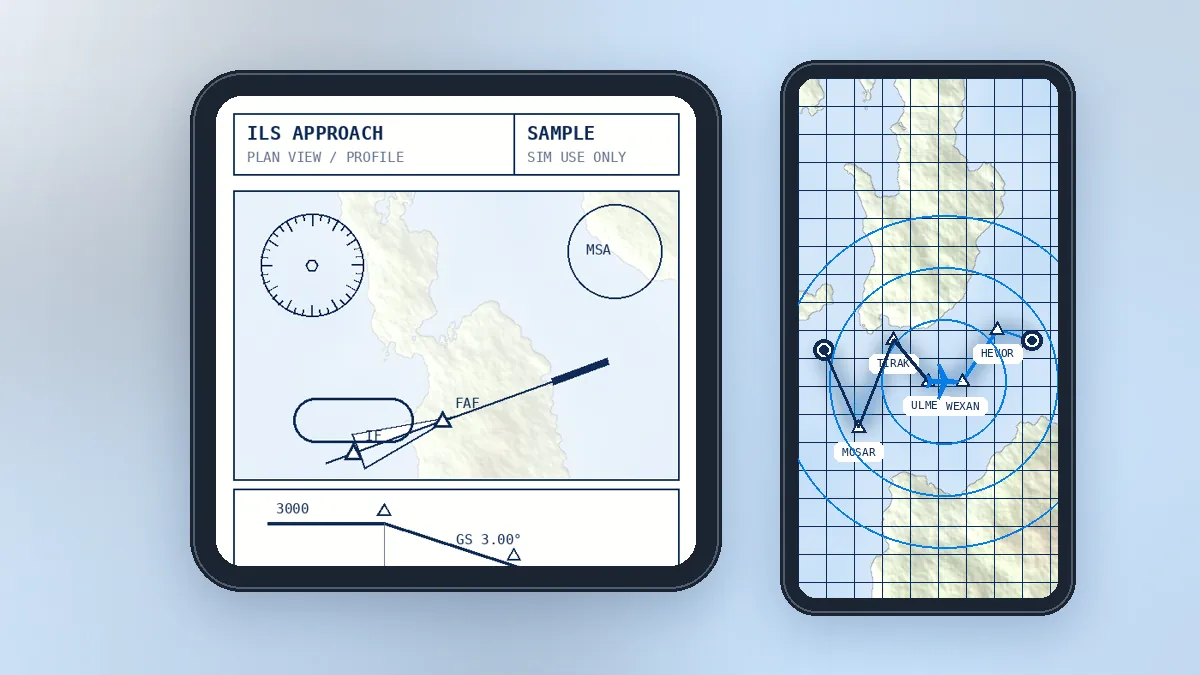
- Compatible departure, arrival and approach procedures can be pinned, depending on your version and settings.
Now you can see the plan visually, check how the SID and STAR connect, and pin the charts for the flight. Our Navigraph flight planner guide explains route visualisation in depth.
Loading the plan into the aircraft
Many add-on aircraft and electronic flight bags can download your SimBrief flight plan directly, usually by entering your SimBrief username or Pilot ID once in the aircraft’s settings. The FMS then receives the route, and sometimes performance data, without manual entry.
After loading, always check:
- the FMS route matches the SimBrief route and the Charts map;
- the SID, STAR and approach in the FMS match the procedures you expect and the charts you pinned;
- the aircraft’s navigation database cycle is current.
If a waypoint is missing or the route will not load, the most common cause is a mismatch between the AIRAC cycle used by SimBrief and the cycle installed in the aircraft.
A complete dispatch-to-landing workflow
Here is how the SimBrief Navigraph combination looks across a full flight.
Dispatch (30–45 minutes before departure)
- Check weather at departure, destination and alternate.
- Generate the SimBrief OFP with realistic payload.
- Read the OFP: route, cruise level, fuel, times.
Briefing (before engine start)
- Import the flight into Navigraph Charts.
- Review the route on the map.
- Pin departure airport diagram, SID, STAR, approach and destination airport diagram.
- Load the plan into the aircraft and verify it against the charts.
Departure
- Use the airport diagram and moving map (with Simlink) to taxi.
- Fly the SID, checking constraints against the chart.
Cruise
- Compare actual fuel and time at waypoints with the OFP’s navigation log.
- Watch weather overlays and online ATC sectors in Charts.
Descent and approach
- Brief the STAR and approach from pinned charts.
- Confirm the FMS procedure matches the chart.
Arrival
- Follow the destination airport diagram to your stand with the moving map.
This rhythm turns a simulator session into a realistic flight with a clear plan and a clear record of how it went.
Using the OFP during flight
The OFP is a living document. Real crews use it to track progress, and you can too:
- Fuel checks. At waypoints, compare your actual fuel with the planned figure. Large differences reveal wind changes or configuration errors.
- Time checks. Compare actual and planned times to estimate your arrival.
- Step climbs. The OFP suggests when climbing to a higher level becomes efficient.
- Annotations. In Navigraph Charts, you can annotate the SimBrief OFP, writing down clearances, ATIS information or fuel checks as you go.
Troubleshooting SimBrief Navigraph issues
"Charts does not show my SimBrief flight"
- Confirm both SimBrief and Charts use the same Navigraph account.
- Generate a new OFP if you edited the plan after the last generation.
- Re-import the flight in Charts.
- Check that your subscription includes the Charts import feature.
"My aircraft will not load the SimBrief plan"
- Confirm your SimBrief username or Pilot ID is entered correctly in the aircraft or EFB settings.
- Check that the aircraft supports SimBrief import in your simulator version.
- Make sure you generated the plan before trying to load it.
"The FMS says a waypoint is not in the database"
- The aircraft probably uses an older AIRAC cycle. Update it with Navigraph Hub or FMS Data Manager.
- If you cannot update, regenerate the route avoiding the missing waypoint.
"Fuel figures look wrong"
- Check that the aircraft profile matches your variant.
- Verify payload and units (kilograms versus pounds).
SimBrief Navigraph for different pilots
Online network pilots
SimBrief routes and Navigraph charts give you current procedures and a clear plan to file with ATC. The moving map in Charts helps with taxi instructions at busy airports.
Virtual airline pilots
Many virtual airlines use SimBrief for dispatch. Combined with Navigraph Charts, it recreates the full airline workflow from briefing to parking.
Casual simmers
Even for occasional flights, a SimBrief plan provides realistic fuel and a sensible route. Importing it into Charts shows you where you are going at a glance.
Console pilots
Navigation data cannot be installed on consoles, but SimBrief plans can be used in some aircraft that support SimBrief import, and Charts and SimBrief can run on a phone, tablet or computer beside the console.
Reading the key parts of a SimBrief OFP
A full OFP can run to many pages, which can feel overwhelming at first. Focus on a handful of sections and you will capture most of its value.
The summary block
Near the top, the OFP lists departure, destination and alternate airports, the aircraft type, the planned cruise level and the estimated times. Read this first to confirm you planned the flight you intended to fly.
The fuel block
The fuel section breaks down trip fuel, contingency, alternate fuel, final reserve and any extra fuel, followed by the minimum required and planned block fuel. Understanding these lines explains why the aircraft needs the fuel it is carrying and how much margin you have.
The weights block
Planned zero fuel weight, takeoff weight and landing weight help you set up the aircraft realistically and check against limits.
The navigation log
The navigation log lists each waypoint with its airway, flight level, wind, distance, estimated time and fuel remaining. During cruise, compare the actual values against this log to monitor progress.
Weather and NOTAM sections
Depending on settings, the OFP includes weather for relevant airports. Read it with the same care you give the route, because weather often decides the runway and therefore the procedures you will brief in Navigraph Charts.
Building good habits with SimBrief and Navigraph
The most realistic simmers are not the ones with the most add-ons; they are the ones with consistent habits. A few that work well with SimBrief and Navigraph:
- Plan every flight, even short ones, so the routine becomes natural.
- Use the same AIRAC cycle in SimBrief and in the aircraft.
- Always import and check the route in Charts before loading it into the FMC.
- Brief the approach before descent, using the pinned chart rather than memory.
- Compare fuel at waypoints with the navigation log to catch mistakes early.
Over time these habits make each flight smoother and give you a much deeper understanding of how real operations are planned.
Frequently asked questions
Do I need a Navigraph subscription to use SimBrief?
No. SimBrief uses a free Navigraph account for sign-in, and you can generate flight plans without a subscription. A subscription affects AIRAC currency and integration features with Charts.
Is SimBrief owned by Navigraph?
Yes. Navigraph acquired SimBrief, and the service now uses Navigraph accounts.
Can I see airport charts inside SimBrief?
Airport and procedure charts are viewed in Navigraph Charts. SimBrief focuses on planning, with additional map features for Navigraph Unlimited subscribers.
Why do my SimBrief route and aircraft database disagree?
Different AIRAC cycles. Keep the aircraft updated to the cycle used for planning.
Where do I download SimBrief?
SimBrief runs in the browser at simbrief.com; there is nothing to install for planning. Some aircraft and tools include their own SimBrief integration.
Key takeaways
- SimBrief and Navigraph share one account, so a single login covers planning, charts and data tools.
- SimBrief produces the operational flight plan; Navigraph Charts shows the route and procedures; the aircraft flies the same plan.
- Current AIRAC data in both SimBrief and the aircraft prevents missing waypoints and mismatched procedures.
- Charts import of SimBrief flights and Charts-based features in SimBrief are part of Navigraph Unlimited.
- Generate, import, check and fly the same plan every time for a realistic, repeatable workflow.
Final thoughts
SimBrief and Navigraph are strongest together. SimBrief provides the numbers and the route, Navigraph Charts turns them into a picture you can brief and follow, and current navigation data makes sure the aircraft understands the plan. Set up one account, keep your data current, and build the habit of generating, importing, checking and flying the same plan every time.