9 min read
 Updated 5 November 2026
 Navigraph editorial
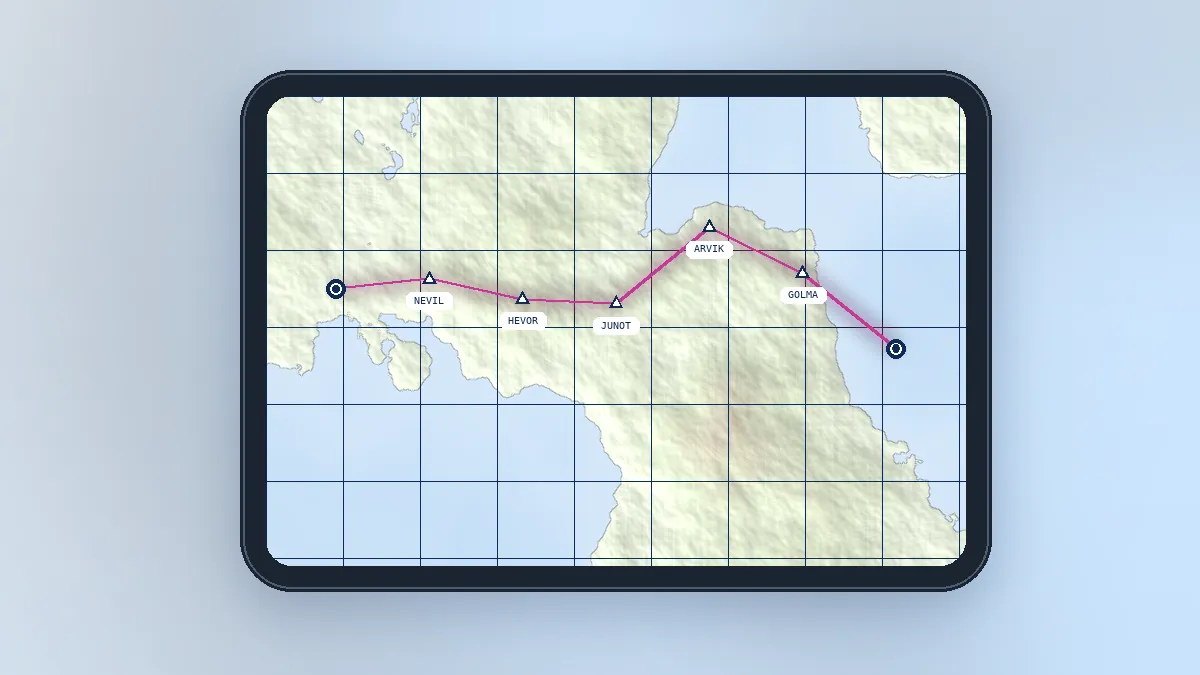
When people talk about "the Navigraph app", they usually mean Navigraph Charts. But Navigraph is really a small family of applications, each with a clear job: one shows charts and maps, others install navigation data, and one connects the simulator to your charts for a moving map. Choosing the right combination — and the right device for each — makes a big difference to how comfortable your simulator flying feels.
This guide explains each Navigraph app, compares the editions of Navigraph Charts, and suggests practical setups for different kinds of simmers.
The Navigraph app family at a glance
| Application | Job | Where it runs |
|---|---|---|
| Navigraph Charts | Charts, map, route planning, moving map display | Windows, macOS, iPad, iPhone, Android, browser |
| Charts In-Game Panel | Navigraph Charts inside Microsoft Flight Simulator | MSFS on PC |
| Navigraph Hub | Installs MSFS navigation data, the In-Game Panel and avionics plugins | Windows PC with MSFS |
| FMS Data Manager | Installs navigation data for X-Plane, Prepar3D and FSX add-ons | Simulator computer |
| Navigraph Simlink | Sends aircraft position from the simulator to Charts | Simulator PC |
| SimBrief | Flight planning and operational flight plans | Browser |
You only need the pieces that match your simulator and goals. A Microsoft Flight Simulator pilot who wants moving maps typically uses Charts, Hub and Simlink. An X-Plane pilot uses Charts, FMS Data Manager and Simlink.
Navigraph Charts: the main app
Navigraph Charts is the application you will spend the most time with. It offers:
- worldwide airport, departure, arrival, approach and enroute charts (with a subscription);
- an interactive map with airways, navaids and airspace;
- route entry, visualisation and SimBrief import;
- pinned charts and annotations;
- weather and online-network traffic overlays;
- a moving map when Simlink is connected.
Recent versions have added features such as seamless zoom, a 3D globe projection, automatic pinning of procedure charts, crosswind and airport weather information, and VFR chart coverage. The details of each feature are covered in our Navigraph Charts guide.
Navigraph Charts editions compared
Windows and macOS desktop
The desktop app suits planning sessions and setups with a second monitor. A large screen makes it easy to read approach charts in full and keep the map open beside them.
Best for: planning, multi-monitor setups, home cockpits with a dedicated chart screen.
Consider: on a single monitor, switching between the simulator and the app interrupts immersion.
iPad and iPhone
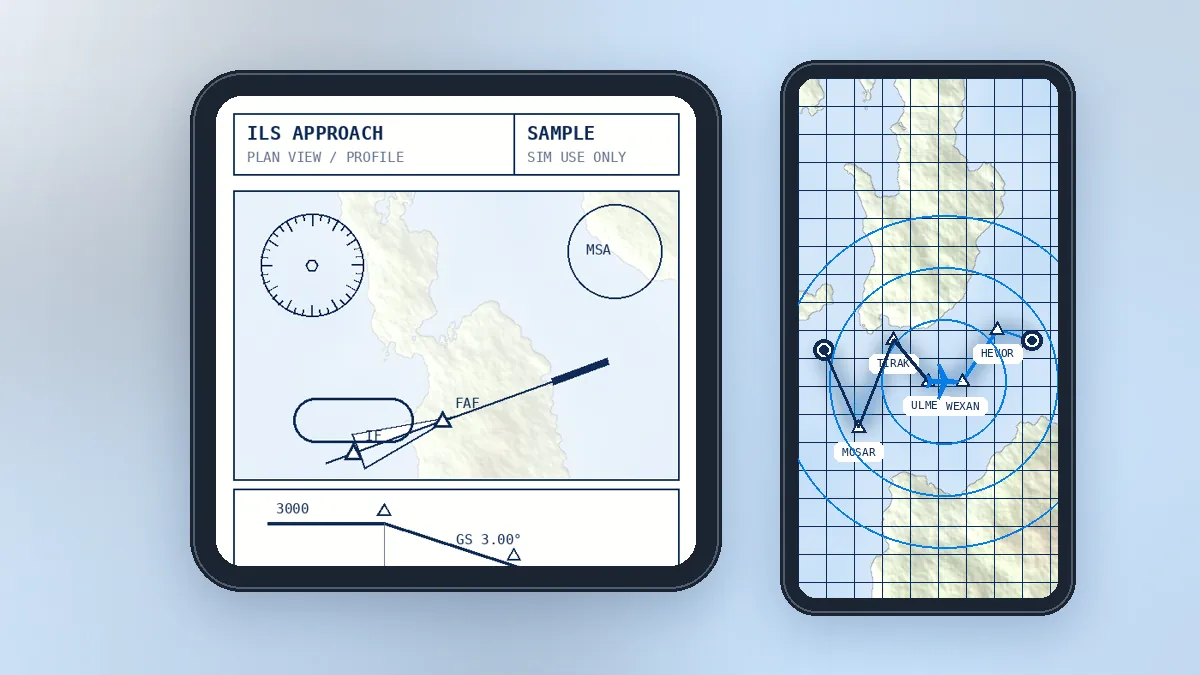
The iOS apps turn a tablet or phone into an electronic flight bag. On an iPad mounted beside your yoke or sitting on your knee, Navigraph Charts feels very close to how real crews use tablets. Check the App Store listing for the current minimum iOS version before installing on older devices.
Best for: realistic EFB experience, touch navigation, moving map beside the simulator.
Consider: keep the device charged during long flights; screen size limits how much of a chart you see at once on a phone.
Android
Android devices, especially tablets, offer the same EFB-style experience. As with iOS, check the store listing for compatibility with your device and Android version.
Best for: Android tablet owners who want a dedicated chart device.
Browser edition (charts.navigraph.com)
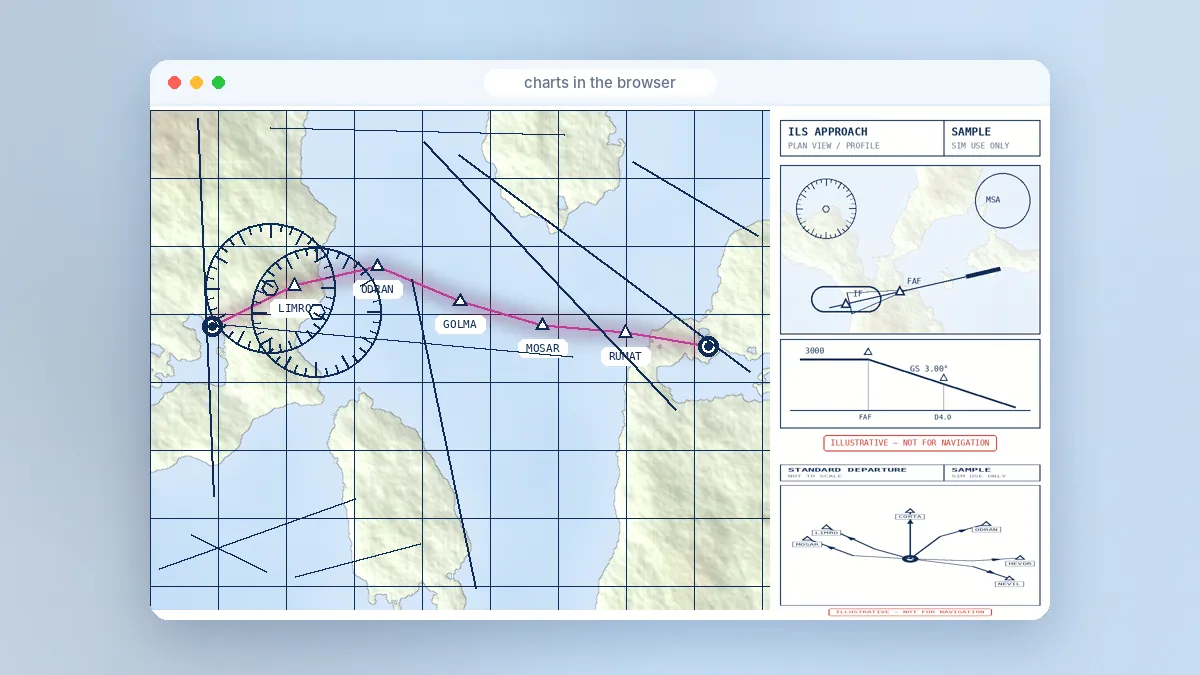
The browser edition, long known as Charts Cloud, runs in any modern browser with no installation. It is ideal for shared computers, laptops and any device where installing software is impractical. Our Navigraph online charts guide explains it in detail.
Best for: quick access anywhere, laptops beside the simulator, locked-down PCs.
Consider: depends on a stable internet connection and browser performance.
Charts In-Game Panel for Microsoft Flight Simulator
The In-Game Panel brings Navigraph Charts into the MSFS toolbar, so you never leave the simulator. It is installed through Navigraph Hub. For VR pilots and single-monitor users, the in-game panel is often the most practical way to use charts.
Best for: VR, single-monitor setups, immersion.
Consider: shares screen space with the cockpit; a second device may be more comfortable for long briefings.
Navigraph Hub
Navigraph Hub is the Windows application that manages Navigraph content for Microsoft Flight Simulator. It replaced the earlier tool known as Navdata Center, and its jobs include:
- installing current navigation data into MSFS;
- installing data packages for supported MSFS add-on aircraft;
- installing the Charts In-Game Panel;
- installing avionics plugins.
When both MSFS 2020 and MSFS 2024 are installed, confirm which simulator Hub is targeting before installing packages. Close the simulator before installing so files are not locked, and restart it afterwards.
FMS Data Manager
FMS Data Manager is the data tool for X-Plane, Prepar3D and FSX. It scans your system for supported simulators and add-ons, lists the data formats they need and installs the current AIRAC cycle in the right places. For X-Plane, navigation data is placed in the Custom Data folder, which X-Plane uses in preference to its default data.
If an add-on is not detected automatically, FMS Data Manager allows you to map it manually. Manual installers are also available from Navigraph for special cases.
Navigraph Simlink
Simlink is a small but essential app if you want a moving map. It runs on the simulator PC, reads your aircraft’s position and shares it with Navigraph Charts on any device signed in to the same account. Simlink does not install navigation data, place files in the simulator or import flight plans — its job is position only.
SimBrief
SimBrief is a web-based flight planning service that uses Navigraph accounts. It produces detailed operational flight plans with routes, fuel, weights and alternates. With Navigraph Unlimited, SimBrief plans can be imported into Navigraph Charts, and many add-on aircraft load SimBrief plans directly. See our SimBrief Navigraph guide.
Recommended setups
The single-monitor MSFS pilot
- Charts In-Game Panel for charts during flight;
- Navigraph Hub for data and the panel;
- SimBrief in a browser for planning;
- optional: Simlink for the moving map in the panel or on a phone.
The VR pilot
- Charts In-Game Panel (where supported in VR) so charts are visible without removing the headset;
- SimBrief and Charts on desktop for planning before putting the headset on.
The tablet EFB pilot
- Charts on iPad or Android mounted beside the controls;
- Simlink on the simulator PC for the moving map;
- Hub or FMS Data Manager for navigation data;
- SimBrief for planning, imported into Charts.
The X-Plane pilot
- FMS Data Manager for X-Plane and add-on data;
- Simlink for moving maps;
- Charts on a second monitor, laptop or tablet.
The console pilot
Navigation data packages cannot be installed on Xbox or PlayStation, because Navigraph Hub is a PC application. Console pilots can still:
- use Navigraph Charts on a phone, tablet or browser beside the console;
- plan with SimBrief, and use SimBrief plans in aircraft that support it.
Installing the apps safely
- Download desktop tools only from navigraph.com.
- Install mobile apps only from the Apple App Store or Google Play.
- Use the browser edition only at charts.navigraph.com.
- Ignore "Navigraph app APK" or "cracked" downloads from other sites — they can contain malware and violate the licence.
You can download the navigation data interface source ZIP directly.
Keeping the apps up to date
Each app updates in its own way:
- desktop apps prompt you when updates are available;
- mobile apps update through their app stores;
- the browser edition updates itself when loaded;
- Hub and FMS Data Manager check for new versions on start;
- Simlink should be kept current, especially after simulator updates.
Staying current matters because simulator updates sometimes change how add-ons communicate, and app updates follow those changes.
Choosing a tablet for Navigraph Charts
If you plan to use a tablet as your main chart device, a few practical considerations help:
- Screen size. Approach charts are designed for a printed page. Larger tablets show a full chart with less zooming, which is more comfortable during busy phases of flight.
- Brightness and glare. A home simulator room may have lamps or windows behind you; a bright, anti-glare screen is easier to read.
- Mounting. A kneeboard holder, a yoke clamp or a stand beside the throttle keeps the device stable. Real pilots secure their tablets for the same reason.
- Battery and charging. Long-haul simulator flights can last many hours. Keep a charging cable within reach, or use a mount that allows charging.
- Performance. Smooth zooming on the map depends on the device. Check the official store listing for supported devices and operating system versions.
A modest tablet works well for most simmers. The goal is a stable, readable display that stays out of the way until you need it.
Using multiple monitors with the desktop app
Desktop pilots with more than one screen can dedicate a monitor to Navigraph Charts. A common layout places the simulator on the main screen and Charts on a smaller monitor below or beside it, with the map on one half and the current chart on the other. Some home cockpit builders mount a portrait-oriented monitor specifically for charts, which suits the tall format of approach plates.
When arranging screens, think about where your eyes go during each phase of flight. During taxi you look at the airport diagram and the outside view together; during approach you glance between the chart and the instruments. Placing the chart screen close to the instruments reduces head movement and feels more natural.
What to install first
If you are setting up from scratch, install in this order to avoid confusion:
- Create your Navigraph account and sign in on the website.
- Install the data tool for your simulator — Navigraph Hub or FMS Data Manager — and update navigation data.
- Install Navigraph Charts on the device you will fly with, or open the browser edition.
- Install Simlink on the simulator PC if you want a moving map.
- Sign in to SimBrief and generate a test flight plan.
- Fly a short test flight to confirm everything connects.
Following this order means each new piece has what it needs from the previous one.
Frequently asked questions
Is the Navigraph app free?
The Navigraph Charts app is free to download and offers demo access with a free account. Full charts, moving maps and current navigation data require a subscription. Our Navigraph free guide explains the details.
Can I use the Navigraph app on more than one device?
Yes, you can sign in on your own devices, for example a desktop for planning and a tablet during flight. Accounts are personal and must not be shared with other people.
Which Navigraph app do I need for MSFS?
Navigraph Hub for data and the In-Game Panel, Navigraph Charts on whichever device you prefer, and Simlink if you want a moving map.
Which Navigraph app do I need for X-Plane?
FMS Data Manager for data, Navigraph Charts for charts and Simlink for the moving map.
Does the Navigraph app work on Linux?
The browser edition works in modern browsers on Linux. Check the official downloads page for current desktop tool support.
Common setup mistakes
Even experienced simmers occasionally trip over the same issues when combining several Navigraph apps:
- Using Navigraph Hub for X-Plane. Hub serves Microsoft Flight Simulator; X-Plane and Prepar3D use FMS Data Manager.
- Installing while the simulator runs. Files can be locked or ignored until restart. Close the simulator first.
- Forgetting aircraft-specific packages. Many add-on airliners keep their own database, separate from the simulator’s.
- Running Simlink on the wrong computer. Simlink must run on the PC that runs the simulator, not on the tablet.
- Mixing accounts. Every app — Charts, Hub, FMS Data Manager, Simlink and SimBrief — must use the same Navigraph account.
- Skipping updates. After a major simulator update, update Simlink, Hub and the in-game panel too.
Key takeaways
- Navigraph Charts is the main app and runs on desktop, mobile, browser and inside MSFS.
- Navigraph Hub and FMS Data Manager install navigation data; choose the one that matches your simulator.
- Simlink provides the moving map by sharing your position with Charts on any signed-in device.
- SimBrief plans flights and connects to Charts and many aircraft.
- Download every app only from navigraph.com or the official app stores.
Final thoughts
The best Navigraph app setup is the one that fits how you fly. Pick the data tool that matches your simulator, choose a Charts edition that suits your screen layout, and add Simlink if you want to see your aircraft on the map. Once the pieces are in place and signed in to one account, they work together quietly in the background while you focus on flying.